
Webflow Video Fix is often the missing step when a Webflow site looks great but performs poorly. Videos that fail to load, buffer too long, or break layout stability frustrate users and damage trust. Many site owners blame Webflow, but the real issue usually lies with video delivery.
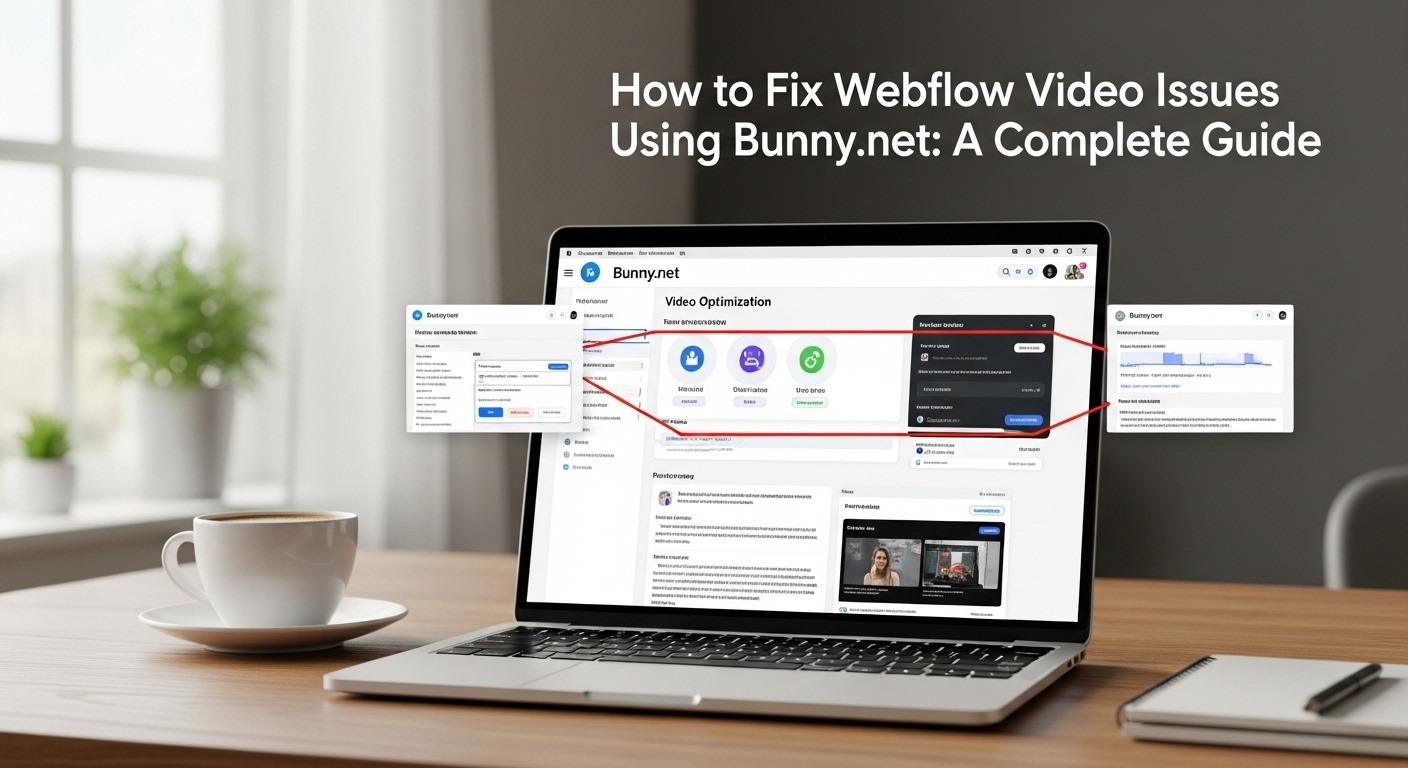
A proper Webflow Video Fix focuses on how videos are hosted, loaded, and served to users across different devices. We will explain how Bunny.net solves common Webflow video problems in a clean and reliable way. You will learn what causes video issues, how Bunny.net fixes them, and how to apply best practices that protect speed, SEO, and user experience.
Understanding Webflow Video Issues Before Applying a Fix
Before choosing a Webflow Video Fix, it is important to understand why video problems appear in the first place. Webflow is built to design and publish websites, not to manage heavy video delivery. This difference matters once a site starts getting real traffic.
At first, videos may seem fine. Pages look clean, and playback works on fast connections. Over time, small delays, loading gaps, and playback errors begin to show. These early signs are often missed, which allows performance problems to grow quietly.
Why Video Hosting Is a Weak Point in Webflow
Webflow supports video embeds and background videos, but it does not optimize large video files for global delivery. When visitors come from different regions or use slower networks, video performance drops quickly.
As traffic grows, several issues become more noticeable:
- Videos load from a single location instead of nearby servers
- Large video files delay the page content from appearing
- Mobile users experience longer load times
- Playback behaves differently across browsers
- SEO performance weakens due to slow page speed
Because these problems appear gradually, many site owners do not connect them to video hosting. A proper Video Fix addresses these issues early, before they harm user trust and search visibility.
How Webflow Video Issues Affect SEO and Rankings
Video problems do more than hurt design. Search engines pay close attention to how a page behaves when someone opens it. If important elements load late or fail to appear smoothly, the page is seen as unreliable. Even strong content can lose visibility when performance signals turn negative.
Search systems aim to recommend pages that feel fast, stable, and easy to use. When videos interfere with these goals, rankings slowly slip. The damage often happens before site owners notice any visible errors.
Direct SEO Problems Caused by Video Errors
When videos are not handled correctly, search engines detect clear warning signs during page analysis and user interaction.
- Page speed drops because large media files delay loading
- Layout shifts occur as videos load after text, causing movement
- Visitors leave early when content takes too long to appear
- Core Web Vitals scores fall below recommended levels
- Crawlers struggle to fully render pages with heavy media
Each of these signals suggests a poor user experience. Over time, trust declines, and search visibility weakens, even if the content itself remains useful.
If you want to understand how errors harm site health, this guide explains it clearly: https://www.rsacreativestudio.com/blog/website-errors-breakdown-common-5xx-4xx-3xx-problems-and-their-quick-fixes
What Makes Bunny.net a Strong Webflow Video Fix
Bunny.net is built specifically for delivering video content quickly and reliably. It focuses on performance, stability, and control rather than design features. This makes it a strong choice when videos cause slow loading, buffering, or playback errors on Webflow websites.

Instead of treating video as a heavy page element, Bunny.net handles it as a separate stream. This approach keeps pages lightweight and prevents media files from blocking important content. As a result, websites feel faster and more responsive, even on slower connections.
How Bunny.net Works Simply
Bunny.net stores videos on a network of servers spread across many regions. When someone visits your website, the video loads from the server closest to them instead of traveling long distances. This shortens load time and reduces buffering during playback.
Because the video loads independently from the main page content, the site remains stable while the media plays. This setup turns Bunny.net into a reliable Webflow Video Fix for performance-focused websites that care about speed and consistency.
Key Benefits of Using Bunny.net for Webflow Video Fix
Before setting it up, it helps to understand the practical value it brings to real websites.
- Faster video start time, even on mobile networks
- Smooth playback that adjusts to different connection speeds
- Lower bounce rate as users wait less and stay longer
- Better page speed scores across testing tools
- Full control over how videos load, play, and appear
Together, these benefits improve the experience for visitors while also supporting how search engines evaluate page quality.
Detailed Comparison: Webflow Native Video vs Bunny.net
This expanded table shows why Bunny.net performs better as a Webflow Video Fix.
Detailed Video Hosting Comparison Table
This table highlights why Bunny.net is a long-term fix rather than a temporary patch.
Common Webflow Video Problems Bunny.net Fixes
A strong Webflow Video Fix solves several performance and usability problems at the same time. Instead of treating symptoms one by one, Bunny.net improves how video content is delivered, loaded, and displayed across different devices and connections.
Slow Video Start Time
Large video files often delay page loading and force visitors to wait before playback begins. This delay creates frustration and increases the chance that users leave early. Bunny.net streams videos in small parts, which allows the video to begin playing almost immediately while the rest loads in the background.
Buffering During Playback
Buffering happens when a video cannot keep up with a user’s internet speed. Bunny.net adjusts video quality in real time based on connection strength. This keeps playback smooth, even on slower networks, without requiring manual settings or user input.
Broken Mobile Playback
Many video issues appear only on phones and tablets. Different browsers handle video differently, which leads to failed playback or missing controls. Bunny.net delivers videos in formats that work consistently across modern browsers and devices, reducing mobile errors.
Layout Shifts
Layout shifts occur when videos load after text and images, pushing content down the page. This movement feels unstable and harms page quality signals. Bunny.net loads videos in a predictable space, helping pages stay visually stable from the first moment they appear.
Step-by-Step Webflow Video Fix Using Bunny.net
This section explains the setup process in a clear and practical way. Each step focuses on improving video delivery while keeping your Webflow layout stable, fast, and easy to manage.
Step 1: Create and Configure Bunny.net
Start by creating an account and enabling video streaming inside the dashboard. During setup, select a storage region that is closest to where most of your visitors are located. This reduces the distance between users and video files, which helps videos start faster and play more smoothly.
Take a moment to review default settings before moving forward. Small choices here affect long-term performance.
Step 2: Upload and Optimize Videos
Upload your video files to the platform once. The system automatically compresses each file and prepares multiple quality versions. This allows videos to adjust based on a visitor’s internet speed.
You do not need to manually resize or edit files. The platform handles optimization in the background while preserving visual quality.
Step 3: Configure Playback Settings
Before embedding videos, adjust playback settings to match your site goals. These controls help improve both user experience and page stability.
You can set:
- Whether the video starts automatically or waits for user action
- If sound is muted or enabled on start
- Loop behavior for short clips
- A custom poster image to display before playback
These options support a clean and reliable Webflow Video Fix without adding extra load to the page.
Step 4: Embed Video into Webflow
Copy the provided embed code and paste it into a Webflow embed element. This method keeps the video lightweight and prevents it from blocking other content.
Avoid using background video blocks for key sections, as they increase load time and reduce control over behavior.
Step 5: Test Across Devices
After publishing, test the page on desktop, tablet, and mobile devices. Check how quickly the video loads, how smoothly it plays, and whether the page layout remains steady.
Testing across devices confirms that your video setup works well for real users, not just on your own screen.
Best Practices to Maintain a Long-Term Webflow Video Fix
A strong video setup should continue working as your site traffic and content grow. One Webflow Video Fix is not enough unless it is supported by good habits that protect speed and stability over time. Small choices made during setup can prevent future performance problems.
Planning for long-term use keeps pages fast, reduces errors, and avoids repeated fixes later.
Use Poster Images Always
Poster images act as a visual placeholder before playback begins. They prevent empty video frames and give visitors something to see immediately. This improves perceived speed and reduces confusion, especially on slower connections.
Avoid Autoplay on Important Pages
Autoplay videos increase data usage and slow down page loading. Many users find unexpected sound annoying and leave early. Letting visitors choose when to play improves comfort and reduces bounce rate.
Limit Video Length
Short videos load faster and hold attention better. Long videos increase file size and delay playback, especially on mobile. Clear, focused clips work best for both users and performance.
Lazy Load Videos Below the Fold
Videos that appear further down the page should load only when users scroll. This protects initial page speed and allows important text content to appear first.
How Bunny.net Supports Google E-E-A-T
Search engines evaluate more than content quality. They also measure how a page feels during real use. Video delivery plays a role in building confidence and reliability.
When playback is smooth and predictable, visitors stay longer and interact more. This signals quality and professionalism.
How Video Performance Aligns With E-E-A-T
- Experience: Videos start quickly without buffering
- Expertise: Content is delivered in a clean, professional way
- Authority: Pages behave consistently across devices
- Trust: Visitors know what to expect every time
Together, these signals strengthen long-term visibility and help pages perform better in search results.
Advanced Optimization Tips for Webflow Video Fix
Once the basic setup is complete, small refinements make a big difference. A strong Webflow Video Fix is not only about making videos work. It is about making sure they appear only when they add real value. Thoughtful placement and regular checks keep pages fast and reliable as content grows.
Good optimization focuses on restraint. Not every page needs motion. Not every visitor wants video. The goal is to support the message without slowing the experience.
Serve Videos Only When Needed
Videos should support understanding, not distract from it. Placing videos on every page increases load time and can confuse visitors. Use them where explanation or demonstration truly helps.
Avoid Background Videos on Mobile
Background videos look appealing on large screens, but they often cause problems on phones. Mobile networks are slower, and background motion consumes more data. Removing background videos on mobile improves speed and makes pages easier to use.
Track Performance Monthly
Performance changes over time as content and traffic grow. Check bounce rate, page speed, and user engagement at least once a month. Early detection prevents small issues from turning into larger problems.
Common Mistakes That Break a Webflow Video Fix
Even a solid setup can fail when small details are ignored. Many video issues return because common mistakes slip in during updates or content changes. Paying attention to these areas helps prevent performance problems.
- Uploading raw files directly
Large video files increase load time and block other content from appearing quickly. This creates delays that frustrate users. - Using multiple videos per page
Too many videos increase page weight and slow down rendering, especially on slower connections. - Ignoring mobile testing
Videos that work on desktops may fail or lag on mobile devices if not tested properly. - Forgetting poster images
Without preview images, visitors see blank spaces while videos load, which feels broken. - Skipping performance audits
Small issues grow over time when speed and behavior are not reviewed regularly.
Avoiding these mistakes helps keep your Webflow Video Fix stable and reliable.
When Bunny.net Is the Right Choice
Bunny.net fits websites that prioritize speed, clarity, and consistent delivery. It supports both growing sites and established platforms without adding complexity.
- You care about speed
Fast video loading improves user experience and page performance. - You target USA or UK users
Regional delivery reduces delay and improves playback quality. - You rely on video content
Stable playback keeps users engaged longer. - You want SEO stability
Smooth loading supports strong performance signals. - You need predictable costs
Clear pricing avoids surprises as traffic grows.
This setup works well for small and medium websites, not just large platforms.
Final Thoughts
Webflow Video Fix is about solving the real issue instead of hiding the symptoms. Video problems usually come from weak delivery, not design. Bunny.net improves how videos load, play, and behave across devices. This creates a faster and more stable experience that users can trust from the first visit.
When videos load cleanly, people stay longer and interact more. Search engines notice this behavior over time. A proper Webflow Video Fix using Bunny.net protects your site today and supports steady growth as traffic increases tomorrow.
Frequently Asked Questions (FAQs)
1. What is the most reliable Webflow Video Fix today?
The most reliable Webflow Video Fix today is using Bunny.net for video delivery instead of relying on basic hosting. Bunny.net is built specifically for fast and stable video streaming. It reduces buffering, improves loading speed, and works well across different devices and locations.
2. Does Bunny.net improve Core Web Vitals?
Yes. Bunny.net improves Core Web Vitals by loading videos without blocking page content. It reduces load time and prevents layout shifts during playback. This helps pages feel more stable and responsive, which is important for both users and search engines.
3. Can beginners apply this Webflow Video Fix?
Yes. Beginners can apply this Webflow Video Fix without technical skills. The setup process is simple and uses copy-and-paste embed codes. No complex configuration or coding knowledge is required, which makes it suitable for designers, marketers, and small business owners.
4. Is Bunny.net better than native Webflow video?
Yes. Bunny.net offers faster delivery, better control, and more reliable playback than native Webflow video. It handles large files more efficiently and performs better on mobile devices. This makes it a stronger option for websites that care about speed and consistency.
5. Does this Webflow Video Fix help SEO?
Yes. This Webflow Video Fix helps SEO by improving page speed, reducing bounce rate, and creating a smoother user experience. When pages load faster and feel stable, users stay longer. These positive signals support stronger search visibility over time.
6. Can Bunny.net handle high traffic?
Yes. Bunny.net is designed to scale easily as traffic grows. It delivers videos via global servers, preventing slowdowns during traffic spikes. Whether your site has a few visitors or many, playback remains smooth and reliable.





.svg)
.svg)
.svg)
.svg)